Build Command
The abpvdev build command builds all solutions and projects in the current directory recursively.
Usage
abpvdev build <workingdirectory> [options]
Parameters
| Parameter | Description |
|---|---|
workingdirectory |
Working directory to run build. Default: . (Current Directory) |
Options
| Option | Shortcut | Description |
|---|---|---|
--build-files |
-f |
Names or part of names of projects or solutions to build |
--interactive |
-i |
Interactive build file selection |
--configuration |
-c |
Build configuration (Debug/Release) |
--help |
-h |
Shows help text |
Examples
Build in Current Directory
abpvdev build
Build in Specific Path
abpvdev build C:\Path\To\Projects
Build with Specific Configuration
abpvdev build -c Release
Build Specific Projects
abpvdev build -f MyApp.Web MyApp.HttpApi.Host
Interactive Project Selection
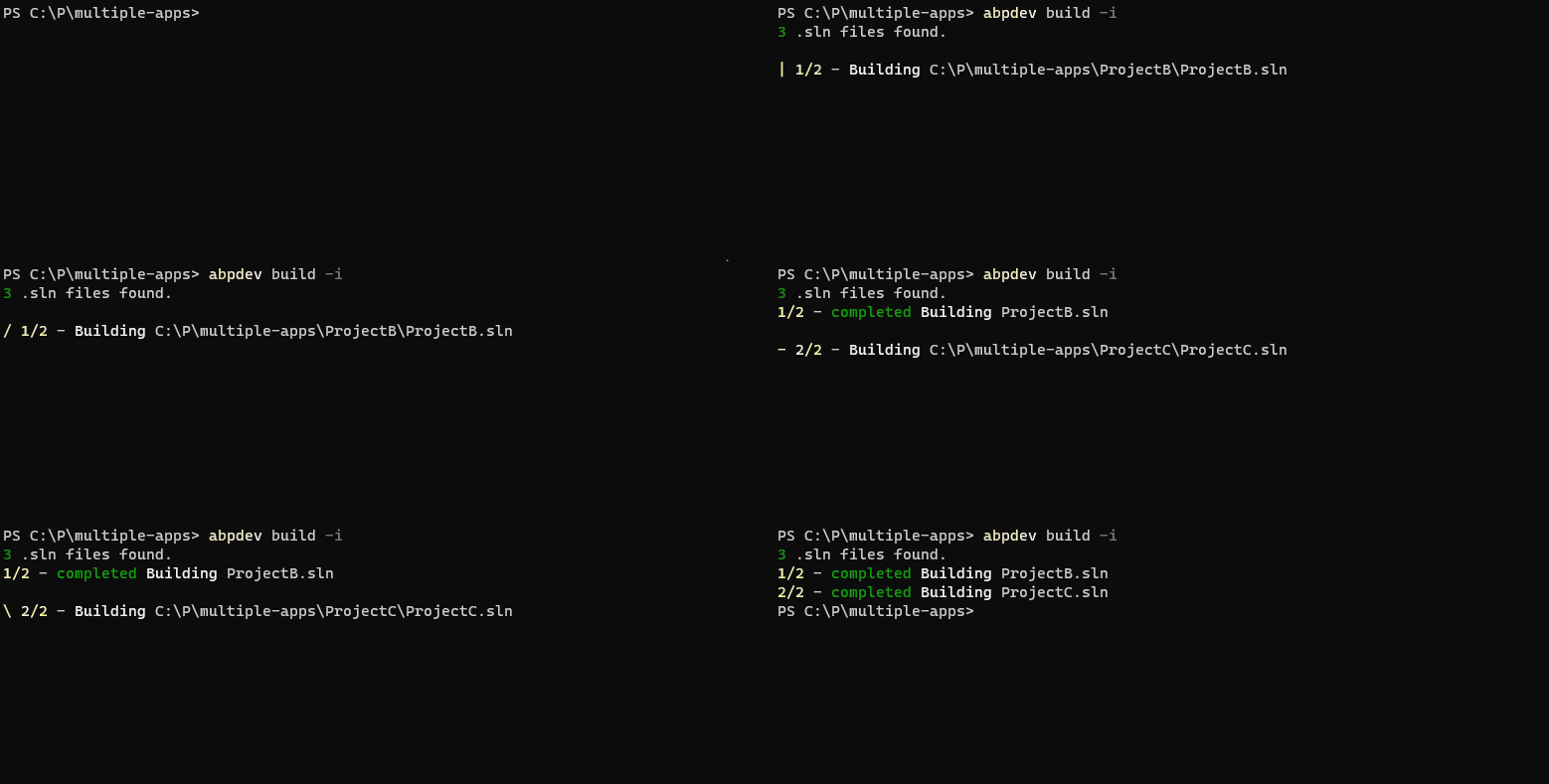
abpvdev build -i
This opens an interactive prompt where you can select which projects to build.
Conventions
*.slnfiles are considered as solutions*.csprojfiles are considered as projects
The command will recursively scan the working directory for all solutions and projects and build them in the correct order based on dependencies.
Output
The build output shows:
- Each solution/project being built
- Build progress and status
- Any warnings or errors
- Build duration
Troubleshooting
Build Fails
- Check that all project files are valid
- Ensure .NET SDK is installed and matches project requirements
- Try cleaning the solution first:
dotnet clean - Check for missing NuGet packages
Wrong Projects Built
Use the -f option to specify exact project names or the -i option for interactive selection.